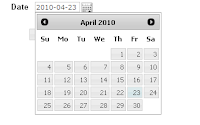
Would you like to have nice datepickers inside your application without any special coding or changing existing date fields?
If you use jQuery, just add this code to your page template HTML header and enjoy jQuery datepickers in every place where you have APEX datepicker item.
<script type=”text/javascript”>
$(document).ready(function () {
$(".datepicker > input[id]").datepicker();
});
</script>
Showing posts with label jQuery. Show all posts
Showing posts with label jQuery. Show all posts
11 February 2012


23 April 2010
Accordion menu in APEX
Etykiety:
accordion menu,
APEX,
jQuery,
jQuery UI
Menu system built into Application Express is quite easy and very useful when you develop simple application. However there are situations when this template doesn't work or has limitations like:
The plan
To build accordion menu in APEX we need to do several things:
jQuery integration
You can find jQuery and jQuery UI files on official website (www.jquery.com), where you can also customize its style. To integrate jQuery and APEX you must import downloaded files to the application or copy them directly on APEX server and refer them to in page HTML.
More information about integrating jQuery and APEX you can find in previous post (APEX and jQuery integration).
Menu building
First we must edit page template (Home>Application Builder>Application>Shared Components>Templates), to turn off standard menu, and create region to display accordion.
If you edit Two Level Tab page template, find #PARENT_TAB_CELLS# and # TAB_CELLS# strings and remove them. Simpler and faster is to use template without menu.
Then write <div id="menu"></div> in place where you want to see new menu.
You'll need to edit some HTML and CSS to get nice look and place menu region exactly where you want to see it.
If you don't have page zero, create it. Go there and create two hidden items (let's name them P0_MENU and P0_MENU_ACTIVE).
Go to Application Processes (Home>Application Builder>Application>Shared Components> Application Processes) and create new "On Load: Before header" (no conditions) process with following code:
DECLARE
v_result varchar2(32000); -- menu code
v_parent_tab number := 0;
v_active_parent_tab number; -- active parent tab
v_tabs_for_page number := 0;
-- session data
v_session_id NUMBER := v('SESSION'); -- session ID
v_application_id NUMBER := v('APP_ID'); -- application number
v_page_id NUMBER := v('APP_PAGE_ID'); -- current page
BEGIN
-- checking if current page has related tab
SELECT count(*) into v_tabs_for_page FROM apex_application_tabs WHERE application_id=v_application_id AND (tab_page = v_page_id OR instr(','||TAB_ALSO_CURRENT_FOR_PAGES||',',','||v_page_id||',')>0);
-- if so we generate menu
IF (v_tabs_for_page>0) THEN
-- In two loops we generate menu code
-- First loop - for each parent tab
FOR y IN (SELECT * FROM apex_application_parent_tabs WHERE application_id=v_application_id ORDER BY DISPLAY_SEQUENCE)
LOOP
-- If user can see parent tab, we add it and create second loop
IF (y.AUTHORIZATION_SCHEME is null OR APEX_UTIL.PUBLIC_CHECK_AUTHORIZATION(y.AUTHORIZATION_SCHEME)) THEN
-- checking active parent tab
IF (v_parent_tab is not null and v_parent_tab>0) THEN
v_result := v_result||'</ul></div>';
v_parent_tab := v_parent_tab + 1;
ELSE
v_parent_tab := 1;
END IF;
-- adding parent tab link to menu
v_result := v_result||'<h3><a href="#">'||y.tab_label||'</a></h3><div><ul>';
-- reating second loop of children tabs for current parent tab
FOR x IN (SELECT * FROM apex_application_tabs WHERE application_id=v_application_id AND TAB_SET = y.CURRENT_FOR_TABSET ORDER BY DISPLAY_SEQUENCE)
LOOP
-- Authorization check
IF (x.AUTHORIZATION_SCHEME is null OR APEX_UTIL.PUBLIC_CHECK_AUTHORIZATION(x.AUTHORIZATION_SCHEME)) THEN
-- if tab is related to current page, we make its name bold, if not we just add its code
IF (x.tab_page = v_page_id OR instr(','||x.TAB_ALSO_CURRENT_FOR_PAGES||',',','||v_page_id||',')>0) THEN
v_result := v_result||'<li><B><a href="'||APEX_UTIL.PREPARE_URL('f?p='||v_application_id||':'||x.tab_page||':'||v_session_id)||'">'||x.tab_label||'</a></B></li>';
v_active_parent_tab := v_parent_tab; -- setting active parent tab
ELSE
v_result := v_result||'<li><a href="'||APEX_UTIL.PREPARE_URL('f?p='||v_application_id||':'||x.tab_page||':'||v_session_id)||'">'||x.tab_label||'</a></li>';
END IF;
END IF;
END LOOP;
END IF;
END LOOP;
-- Closing tabs list
v_result := v_result||'</ul></div>';
-- setting menu code to global variable
:P0_MENU := '<div id="accordion">'||v_result||'</div>';
:P0_MENU_ACTIVE := v_active_parent_tab-1;
END IF; -- if not we don't change menu
END;
It'll generate and adapt menu, and then write its code to P0_MENU item every time you enter new page in your application.
Return to page template and in Header section write:
 <script type="text/javascript">
$(document).ready(function () {
$("#menu").html($('#P0_MENU').val());
$("#accordion").accordion({
autoHeight: false,
animated: 'fold',
active: Number($('#P0_MENU_ACTIVE').val())
});
});
</script>
Apply changes and run application. If your page uses template that you've just changed, you should see accordion menu filled with parent (as sections) and standard tabs (as links).
This method has been tested with APEX 3.2.1 and jQuery 1.4.2 (UI 1.8). It works with all browsers.
- when you have a lot of parent and standard tabs, you'll face problems with menu size;
- if you want to use some page as a common detail level of reports related to different tabs, you must choice one tab to be highlighted as current;
- to access submenu link, you must first load page, that is first in parent tab definition.
The plan
To build accordion menu in APEX we need to do several things:
- attach jQuery and jQuery UI libraries and styles to our template;
- create dedicated place in our page template where we'll display menu;
- create process that will read parent and standard tabs (you must have them!) from APEX views and generate menu code including security rules;
- get it together and invoke jQuery accordion function.
jQuery integration
You can find jQuery and jQuery UI files on official website (www.jquery.com), where you can also customize its style. To integrate jQuery and APEX you must import downloaded files to the application or copy them directly on APEX server and refer them to in page HTML.
More information about integrating jQuery and APEX you can find in previous post (APEX and jQuery integration).
Menu building
First we must edit page template (Home>Application Builder>Application>Shared Components>Templates), to turn off standard menu, and create region to display accordion.
If you edit Two Level Tab page template, find #PARENT_TAB_CELLS# and # TAB_CELLS# strings and remove them. Simpler and faster is to use template without menu.
Then write <div id="menu"></div> in place where you want to see new menu.
You'll need to edit some HTML and CSS to get nice look and place menu region exactly where you want to see it.
If you don't have page zero, create it. Go there and create two hidden items (let's name them P0_MENU and P0_MENU_ACTIVE).
Go to Application Processes (Home>Application Builder>Application>Shared Components> Application Processes) and create new "On Load: Before header" (no conditions) process with following code:
DECLARE
v_result varchar2(32000); -- menu code
v_parent_tab number := 0;
v_active_parent_tab number; -- active parent tab
v_tabs_for_page number := 0;
-- session data
v_session_id NUMBER := v('SESSION'); -- session ID
v_application_id NUMBER := v('APP_ID'); -- application number
v_page_id NUMBER := v('APP_PAGE_ID'); -- current page
BEGIN
-- checking if current page has related tab
SELECT count(*) into v_tabs_for_page FROM apex_application_tabs WHERE application_id=v_application_id AND (tab_page = v_page_id OR instr(','||TAB_ALSO_CURRENT_FOR_PAGES||',',','||v_page_id||',')>0);
-- if so we generate menu
IF (v_tabs_for_page>0) THEN
-- In two loops we generate menu code
-- First loop - for each parent tab
FOR y IN (SELECT * FROM apex_application_parent_tabs WHERE application_id=v_application_id ORDER BY DISPLAY_SEQUENCE)
LOOP
-- If user can see parent tab, we add it and create second loop
IF (y.AUTHORIZATION_SCHEME is null OR APEX_UTIL.PUBLIC_CHECK_AUTHORIZATION(y.AUTHORIZATION_SCHEME)) THEN
-- checking active parent tab
IF (v_parent_tab is not null and v_parent_tab>0) THEN
v_result := v_result||'</ul></div>';
v_parent_tab := v_parent_tab + 1;
ELSE
v_parent_tab := 1;
END IF;
-- adding parent tab link to menu
v_result := v_result||'<h3><a href="#">'||y.tab_label||'</a></h3><div><ul>';
-- reating second loop of children tabs for current parent tab
FOR x IN (SELECT * FROM apex_application_tabs WHERE application_id=v_application_id AND TAB_SET = y.CURRENT_FOR_TABSET ORDER BY DISPLAY_SEQUENCE)
LOOP
-- Authorization check
IF (x.AUTHORIZATION_SCHEME is null OR APEX_UTIL.PUBLIC_CHECK_AUTHORIZATION(x.AUTHORIZATION_SCHEME)) THEN
-- if tab is related to current page, we make its name bold, if not we just add its code
IF (x.tab_page = v_page_id OR instr(','||x.TAB_ALSO_CURRENT_FOR_PAGES||',',','||v_page_id||',')>0) THEN
v_result := v_result||'<li><B><a href="'||APEX_UTIL.PREPARE_URL('f?p='||v_application_id||':'||x.tab_page||':'||v_session_id)||'">'||x.tab_label||'</a></B></li>';
v_active_parent_tab := v_parent_tab; -- setting active parent tab
ELSE
v_result := v_result||'<li><a href="'||APEX_UTIL.PREPARE_URL('f?p='||v_application_id||':'||x.tab_page||':'||v_session_id)||'">'||x.tab_label||'</a></li>';
END IF;
END IF;
END LOOP;
END IF;
END LOOP;
-- Closing tabs list
v_result := v_result||'</ul></div>';
-- setting menu code to global variable
:P0_MENU := '<div id="accordion">'||v_result||'</div>';
:P0_MENU_ACTIVE := v_active_parent_tab-1;
END IF; -- if not we don't change menu
END;
It'll generate and adapt menu, and then write its code to P0_MENU item every time you enter new page in your application.
Return to page template and in Header section write:

$(document).ready(function () {
$("#menu").html($('#P0_MENU').val());
$("#accordion").accordion({
autoHeight: false,
animated: 'fold',
active: Number($('#P0_MENU_ACTIVE').val())
});
});
</script>
Apply changes and run application. If your page uses template that you've just changed, you should see accordion menu filled with parent (as sections) and standard tabs (as links).
This method has been tested with APEX 3.2.1 and jQuery 1.4.2 (UI 1.8). It works with all browsers.
APEX and jQuery UI integration
We can import every javascript library (including jQuery) to Oracle APEX using standard import file process available from application level (Home>Application Builder>Application>Shared Components>Static Files) and then reference it in page header using #APP_IMAGES# or #WORKSPACE_IMAGES# as file source.
However files imported this way won’t be cached by browser (they are in database, not in server’s file system) and using this technique it’s hard to import packages containing several files referencing to each other (like jQuery UI).

So if it’s possible you should upload jQuery and jQuery UI files directly on APEX server. To do this, find APEX folder and "images" catalogue inside. In "images" create subfolder "jQuery" and copy there jQuery and jQuery UI files.
Files from server
In "images" folder you should find imagelist.xml file. Edit it and add all dictionaries and all files you’ve just copied. Save the file, run SQL*Plus and execute script:
SQL> @apxldimg.sql PATH
where PATH is your APEX folder path. After several minutes all files will be available.
To use jQuery you must reference to imported files in HTML header (on single page or in page template) using:
<link rel="stylesheet" type="text/css" href="#IMAGE_PREFIX#jQuery/css/ui-lightness/jquery-ui-1.8rc2.custom.css" />
<script type="text/javascript" src="#IMAGE_PREFIX#jQuery/js/jquery-1.4.2.min.js"></script>
<script type="text/javascript" src="#IMAGE_PREFIX#jQuery/js/jquery-ui-1.8rc2.custom.min.js"></script>
Files from external source
If you don't want or simply can't import jQuery libraries and CSS in this way you can load them from external source (it's good idea for OTN applications). Just put this text in HTML header:
<script src="http://www.google.com/jsapi"></script>
<script type="text/javascript">
google.load('jquery', '1.4.2');
google.load('jqueryui', '1.8.1');
</script>
<link rel="stylesheet" type="text/css" href="http://ajax.googleapis.com/ajax/libs/jqueryui/1.8.1/themes/redmond/jquery-ui.css" />
Test
To check if everything works fine, create new datepicker item on your page. In page HTML header put following code:
<script type=”text/javascript”>
$(document).ready(function () {
$(".datepicker > input[id]").datepicker( { dateFormat: 'yy-mm-dd' });
});
</script>
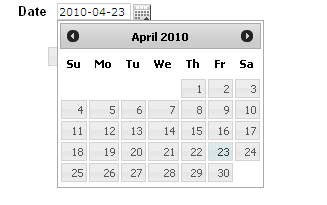
After page refresh, when you click inside datepicker field, calendar region should appear.
However files imported this way won’t be cached by browser (they are in database, not in server’s file system) and using this technique it’s hard to import packages containing several files referencing to each other (like jQuery UI).
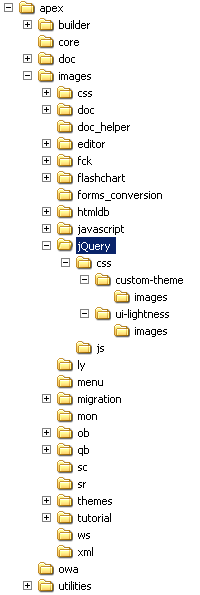
So if it’s possible you should upload jQuery and jQuery UI files directly on APEX server. To do this, find APEX folder and "images" catalogue inside. In "images" create subfolder "jQuery" and copy there jQuery and jQuery UI files.
Files from server
In "images" folder you should find imagelist.xml file. Edit it and add all dictionaries and all files you’ve just copied. Save the file, run SQL*Plus and execute script:
SQL> @apxldimg.sql PATH
where PATH is your APEX folder path. After several minutes all files will be available.
To use jQuery you must reference to imported files in HTML header (on single page or in page template) using:
<link rel="stylesheet" type="text/css" href="#IMAGE_PREFIX#jQuery/css/ui-lightness/jquery-ui-1.8rc2.custom.css" />
<script type="text/javascript" src="#IMAGE_PREFIX#jQuery/js/jquery-1.4.2.min.js"></script>
<script type="text/javascript" src="#IMAGE_PREFIX#jQuery/js/jquery-ui-1.8rc2.custom.min.js"></script>
Files from external source
If you don't want or simply can't import jQuery libraries and CSS in this way you can load them from external source (it's good idea for OTN applications). Just put this text in HTML header:
<script src="http://www.google.com/jsapi"></script>
<script type="text/javascript">
google.load('jquery', '1.4.2');
google.load('jqueryui', '1.8.1');
</script>
<link rel="stylesheet" type="text/css" href="http://ajax.googleapis.com/ajax/libs/jqueryui/1.8.1/themes/redmond/jquery-ui.css" />
Test
To check if everything works fine, create new datepicker item on your page. In page HTML header put following code:
<script type=”text/javascript”>
$(document).ready(function () {
$(".datepicker > input[id]").datepicker( { dateFormat: 'yy-mm-dd' });
});
</script>
After page refresh, when you click inside datepicker field, calendar region should appear.
Subscribe to:
Posts (Atom)

 Posts
Posts

